Facebook
 Google
 GitHub
 Linkedin
Industry White Paper
Measure Liquid Depth: Interfacing an I2C Water Level Sensor with the FPB-RA0E1
Learn how to read a Grove I2C water level sensor with the Renesas FPB-RA0E1, configure the IICA master in e² studio, and stream live depth readings over SEGGER RTT.
You have a reservoir, a fish tank, or an automated watering system, and you need to know exactly how much liquid is inside. Relying on mechanical float switches is prone to physical failure and only provides binary data. To build a robust embedded application, you need a solid-state sensor that provides granular depth readings without moving parts.
This article demonstrates how to interface a capacitive Grove Water Level Sensor with the Renesas FPB-RA0E1 Fast Prototyping Board. Using the e² studio IDE and the Flexible Software Package (FSP), you will configure the I2C master peripheral, route the data lines to the appropriate pins, and write a C application to query the sensor’s dual slave addresses. You will then parse the incoming capacitive data to stream live water depth measurements to a terminal. In the real world, this exact integration strategy allows embedded devices to automate fluid control and monitor tank capacities reliably over time.
Project Specs
| Target Board | FPB-RA0E1 |
| MCU Family | Renesas RA0 Series |
| Peripheral Covered | I2C Master (r_iica_master) |
| IDE / Toolchain | e² studio + FSP v5.5.0 |
| Interface Used | I2C via jumper wires + SEGGER RTT |
| Baud Rate | N/A |
| Skill Level | Intermediate |
| Build Time | 30 minutes |
| Prerequisites | e² studio installed, board initialized, SEGGER RTT Viewer installed |
Why I2C Communication Matters
When designing smart agricultural equipment or industrial fluid monitors, wiring complexity becomes a serious bottleneck. If you use individual analog sensors to detect different water levels, you quickly consume every available GPIO pin on your microcontroller. I2C solves this problem by allowing multiple devices to communicate over just two wires.
The capacitive water level sensor used in this project does not output a simple analog voltage. It contains an array of sensing pads controlled by independent microcontrollers. By configuring the FPB-RA0E1 as an I2C master, you can read a capacitance value for every pad directly from these on-sensor microcontrollers and let your firmware decide which pads are wet. Mastering I2C on the Renesas RA0 Series allows you to interface with thousands of off-the-shelf digital sensors, displays, and memory chips.
What You’ll Need
Hardware
- Renesas FPB-RA0E1 Fast Prototyping Board
- Jumper wires
- Grove Water Level Sensor
- USB cable
- A container of water for testing
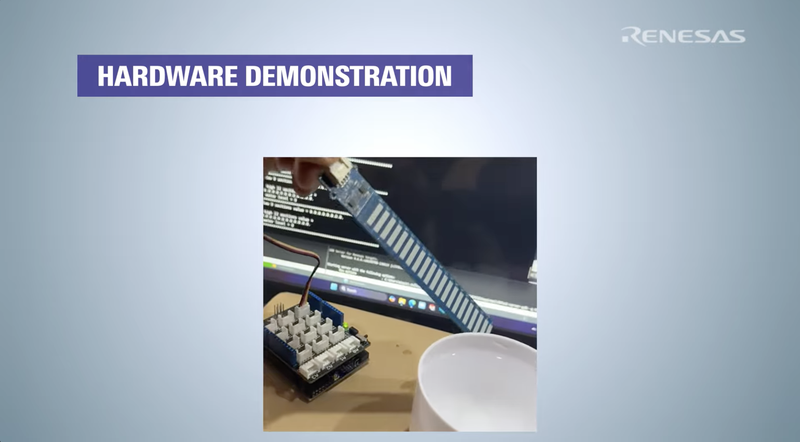
Figure 1. The Grove Water Level Sensor connected to the FPB-RA0E1 and lowered into a container of water. Image used courtesy of Renesas
Software
- e² studio IDE
- Flexible Software Package (FSP)
- J-Link RTT Client
The Concept in 60 Seconds
I2C relies on a master-slave architecture. The FPB-RA0E1 acts as the master, dictating when communication happens. The Grove Water Level Sensor is unusual because it houses two separate ATtiny1616 microcontrollers acting as slaves on the same board. One handles the lower 8 sensing sections (address 0x77), and the other handles the upper 12 sections (address 0x78).
To get a complete reading, your code must dynamically switch its target I2C address, request the data payload from the first slave, switch the address again, and request the remaining payload from the second slave. The microcontroller then pieces these arrays together to calculate the final liquid depth.
Step-by-Step: Building the Project
Step 1: Review the Documentation
- Check the Quick Start Guide and Seeed Studio documentation to identify the physical I2C pins and slave addresses.
- Reviewing the documentation first tells you which RA0E1 pins the sensor connectors reach, so you know exactly which pins to assign when you configure the stack in Step 3.
Step 2: Create a Minimal Bare Metal Project
- Click the file icon in your e² studio IDE, select New, select Renesas C/C++ Project, select Renesas RA, and then select C/C++ Project.
- Name the project Water_level_sensor and target the FPB-RA0E1 board using FSP version 5.5.0.
- Select a Flat (Non-TrustZone) Project structure, choose the Executable and No RTOS options, and select the Bare Metal Minimal template.
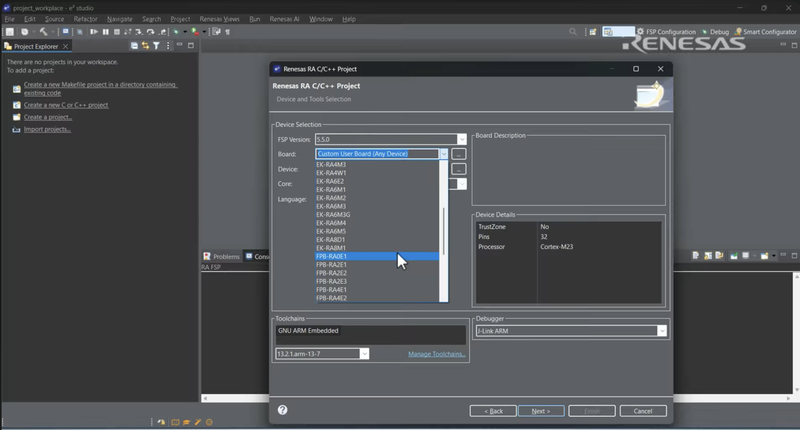
Figure 2. Selecting the FPB-RA0E1 board with FSP 5.5.0 in the e² studio new project wizard. Image used courtesy of Renesas
Starting with a minimal template removes unnecessary operating system overhead so you can focus entirely on the I2C peripheral configuration.
Step 3: Add and Configure the IICA Master Stack
- Open the FSP Configuration perspective. Navigate to the Stacks tab, click New Stack, select Connectivity, and click IIC Master (r_iica_master).
- In the Properties window, change the Duty Cycle to 50%. Assign the SCLA Pin to P914 and the SDAA Pin to P913.
- Click Generate Project Content.
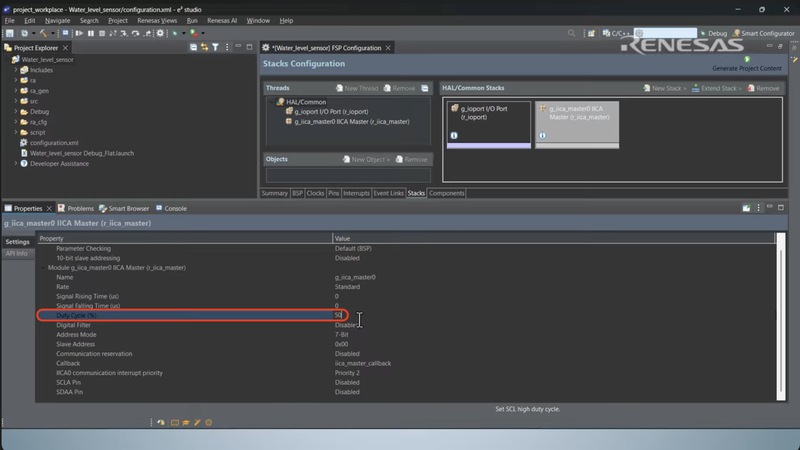
Figure 3. Setting the duty cycle to 50% in the IICA master stack properties. Image used courtesy of Renesas
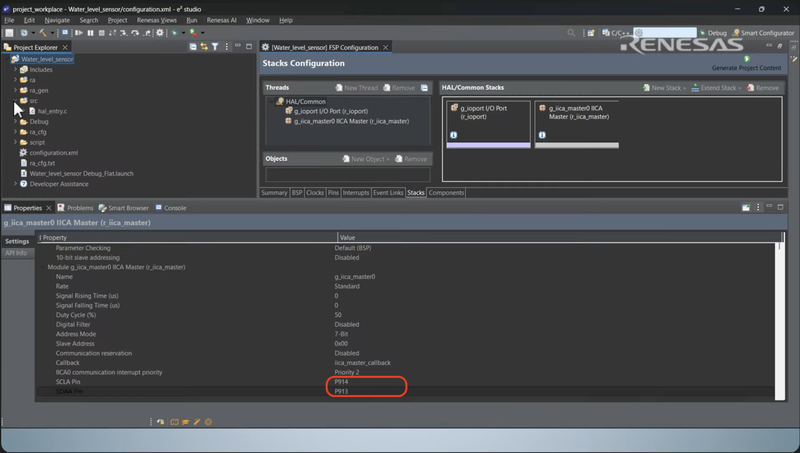
Figure 4. Assigning the SCLA pin to P914 and the SDAA pin to P913 in the IICA master stack properties. Image used courtesy of Renesas
Because microcontroller pins are multiplexed, you must explicitly route the internal I2C peripheral to specific physical pins in the FSP. If these pin assignments do not match the headers where you connect your jumper wires, the clock and data lines will remain electrically disconnected from the sensor.
Step 4: Define Variables and Include Headers
- Open hal_entry.c in your src folder. Include common_utils.h to enable the RTT terminal printing.
- Declare global data buffers for the low and high I2C reception arrays (low_data and high_data), initializing them to {0} with sizes 8 and 12 respectively. Add the THRESHOLD (100) and NO_TOUCH (0) macros. Define the slave addresses as macros (ATTINY1_HIGH_ADDR as 0x78 and ATTINY2_LOW_ADDR as 0x77).
- Finally, declare a volatile event variable to track the I2C callback status and set a timeout_ms variable to 30 for your read loops.
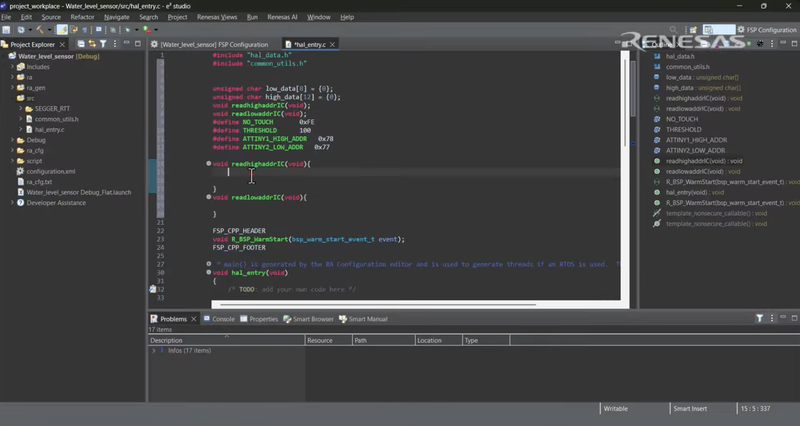
Figure 5. The include files, data buffers, and address macros declared at the top of hal_entry.c. Image used courtesy of Renesas
The sensor returns its data in two separate I2C transactions from two different slave addresses. Dedicated buffers for each transaction prevent the second read from overwriting the first, and the event tracker lets each read function know when its transfer has finished.
Step 5: Implement the Callback Function
- From the Developer Assistance tab, drag and drop the I2C callback function into your file. Inside this callback, update your global event variable by assigning it to p_args->event.
Because the I2C read operation occurs in the background, this callback provides the vital signal to your main program that the incoming data has fully arrived and is ready for processing.
Step 6: Create the I2C Read Functions
- Define two functions named readHighAddrIIC and readLowAddrIIC. Inside each, use memset to clear the data buffer.
- Drag and drop R_IICA_MASTER_SlaveAddressSet from Developer Assistance to target the appropriate slave address, followed by R_IICA_MASTER_Read to request the bytes.
- Add a while loop that checks your event variable to wait for the reception to complete, then subtracts from your timeout variable during a 100 millisecond R_BSP_SoftwareDelay.
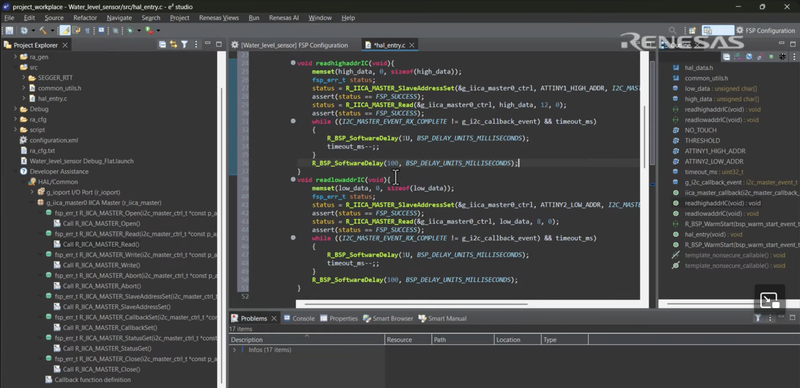
Figure 6. The readHighAddrIIC and readLowAddrIIC functions set the slave address, read the data, and wait for each transfer to finish. Image used courtesy of Renesas
Dynamically updating the slave address before executing a read allows a single I2C bus master to query multiple devices sequentially.
Step 7: Write the Measurement Logic
- Create a Measure function. Declare a while(1) loop inside the Measure function, then cut and paste your measurement and print instructions into it.
- Within this loop, call both read functions and iterate through the resulting arrays. If a pad value exceeds the 100 threshold, use bitwise operations to count the consecutive triggered pads and calculate the water level percentage. Log the calculation to the terminal using APP_PRINT.
Comparing each value against a fixed 100 threshold converts this raw data into a simple binary state for each pad. Multiplying the triggered sections by five calculates the final water level percentage, since each of the 20 pads represents 5% of the total depth.
Step 8: Initialize I²C and Execute the Measurement
- Inside the main hal_entry function, drag and drop the R_IICA_MASTER_Open call and assert its success. Since you moved the measurement instructions in the previous step, simply call your Measure(); function once below the assertion.
At reset, the I2C hardware block is powered down. The open call actively loads your FSP configuration into the registers so the peripheral is ready to drive the bus.
Step 9: Build and Fix Format Specifiers
- Click the hammer icon to build the project. The compiler will throw warnings about the APP_PRINT formatting strings. Ensure you are using the %d identifier to print your integer variables on the RTT terminal. Build again to confirm zero errors and zero warnings before launching your debug session.
The warning occurs because the array index was missing (passing a pointer instead of an integer), which is resolved by appending [i] to the data variables.
![Appending [i] to low_data in the APP_PRINT call resolves the format specifier warning.](https://www.allaboutcircuits.com/uploads/articles/water-level-ra0e1-fig7.png)
Figure 7. Appending [i] to low_data in the APP_PRINT call resolves the format specifier warning. Image used courtesy of Renesas
Code Snippet
// Dynamically set the I2C address to target the high data section
status = R_IICA_MASTER_SlaveAddressSet(&g_iica_master0_ctrl, ATTINY1_HIGH_ADDR, I2C_MASTER_ADDR_MODE_7BIT);
assert(FSP_SUCCESS == status);

// Read 12 bytes of data from the high section of the sensor
status = R_IICA_MASTER_Read(&g_iica_master0_ctrl, high_data, 12, false);
assert(FSP_SUCCESS == status);

// Wait for the I2C read operation to fully complete
while(I2C_MASTER_EVENT_RX_COMPLETE != g_i2c_callback_event && timeout_ms)
{
    R_BSP_SoftwareDelay(100, BSP_DELAY_UNITS_MILLISECONDS);
    timeout_ms--;
}
What You Should See
After building the project and launching the Renesas GDB Hardware Debugging perspective, open your J-Link RTT Client. The terminal begins continuously printing the live output arrays. When the sensor is dry, every pad reads well below 100 and the water level prints as 0. As you lower the sensor into water, each covered pad jumps to roughly 245 to 255, and the level climbs in steps of 5.
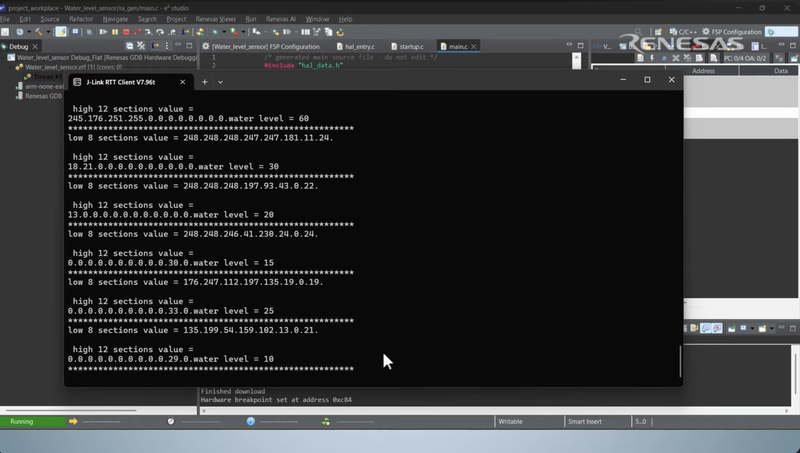
Figure 8. The J-Link RTT Client prints the pad values and the water level as the sensor is lowered into water. Image used courtesy of Renesas
Troubleshooting
Both Arrays Print Only Zeros and the Level Never Changes
A cable is loose or seated in the wrong connector. The sensor never acknowledges its address, the driver aborts the transfer, and the wait loop exits on its timeout with the buffers still holding the zeros that memset wrote. Reseat the Grove cable and jumper wires in the board’s female headers.
The Arrays Show High Values, but the Level Reads Zero
The measurement logic counts wet pads upward from the bottom and stops at the first dry one. The result stays at zero whenever the lowest pad in the low section falls below your threshold. Make sure the bottom of the sensor is actually submerged.
Build Fails With a Warning About Format Specifiers
Ensure you are using the correct %d identifier in your APP_PRINT formatting strings to print integer variables. This warning occurs because the array index was missing (passing a pointer instead of an integer). Resolve this by appending [i] to your low_data and high_data variables.
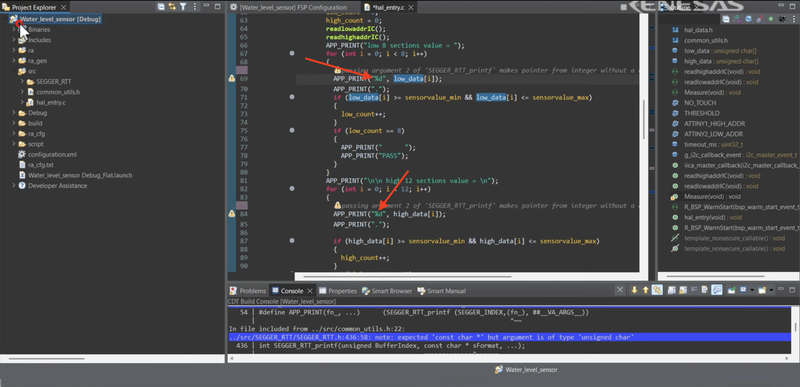
Figure 9. The compiler flags the APP_PRINT calls where the array index is missing. Image used courtesy of Renesas
Where to Take It Next
Now that you are successfully pulling environmental data over I2C, you can use the resulting water level integer to drive physical hardware. Try mapping the depth variable to a PWM output to dynamically control the speed of an external water pump based on the tank level. You can also add a secondary I2C device like an OLED display to the exact same bus pins. Because you already know how to use the address set function, you can alternate between reading the sensor and pushing visual data to the screen without consuming a single additional GPIO pin.
Frequently Asked Questions
Why Does This Single Water Level Sensor Have Two I2C Addresses?
The physical sensor relies on an array of capacitive touch pads to determine the liquid height. A single ATtiny1616 microcontroller cannot handle all 20 sensing sections. The manufacturer placed two microcontrollers on the same circuit board. One chip handles the lower 8 pads, and the other handles the top 12 pads.
What Is the Duty Cycle Setting in the I2C Stack Configuration?
The duty cycle specifies the ratio of time the clock signal spends in a high logic state versus a low logic state. Changing the default to 50 percent configures the clock generation specifically for this bus setup.
Can I Connect Multiple Water Sensors to the Same Board?
You cannot connect two of these identical sensors to the exact same I2C bus because they share hardcoded slave addresses (0x77 and 0x78). This would cause data collisions. To read multiple sensors, you need a second independent bus or an I2C multiplexer.
Why Use SEGGER RTT Instead of a Standard Serial Print?
Real-Time Transfer uses the existing debug pins and background memory access to send text directly to the host computer at very high speeds. It requires no extra wiring, no baud rate configuration, and imposes near zero CPU overhead, making it ideal for monitoring fast data streams.