Facebook
 Google
 GitHub
 Linkedin
Industry White Paper
Respond Instantly to Physical Inputs: Configuring an External Interrupt on the FPB-RA8E1
Learn how to set up an external interrupt on the Renesas FPB-RA8E1, map the user switch to IRQ channel 13 in e² studio, and toggle the onboard LEDs with a callback.
You have a button connected to your microcontroller, and you need the system to react the exact millisecond a user presses it. Continuously polling a GPIO pin inside an infinite loop works for simple toys, but in a real embedded application, polling wastes valuable CPU cycles and power. To build a truly responsive system, you need hardware interrupts.
This walkthrough demonstrates how to set up an external interrupt request (IRQ) using the Renesas FPB-RA8E1 Fast Prototyping Board. Using the e² studio IDE and the Flexible Software Package (FSP), you will map a physical switch to a dedicated IRQ channel, write a custom callback function, and toggle the onboard LEDs. In the real world, mastering external interrupts allows your microcontroller to remain in deep sleep, waking up instantly only when a critical event like a sensor alarm or a user input demands attention.
Project Specs
| Target Board | FPB-RA8E1 |
| MCU Family | Renesas RA8 Series |
| Peripheral Covered | External IRQ (r_icu) and I/O Port (r_ioport) |
| IDE / Toolchain | e² studio + FSP v6.3.0 |
| Interface Used | Onboard User Switch and LEDs |
| Baud Rate | N/A |
| Skill Level | Beginner |
| Build Time | 15 minutes |
| Prerequisites | e² studio installed, board initialized |
Why Hardware Interrupts Matter
Constantly checking the state of a pin limits your microcontroller from performing complex calculations or entering power-saving modes. By configuring a hardware interrupt, you offload the monitoring task entirely to the processor’s peripheral hardware. When an external interrupt is configured, the processor ignores the pin until the electrical state changes.
Once the physical signal drops or rises, the Interrupt Controller Unit will force the processor to pause its current task, jump to a specific block of code known as a callback, execute your logic, and then seamlessly return to what it was doing. Implementing this architecture on the Renesas RA8 Series ensures that your system acts predictably and efficiently.
What You’ll Need
Hardware
- Renesas FPB-RA8E1 Fast Prototyping Board
- USB Type-C cable
Software
The Concept in 60 Seconds
An external interrupt maps a physical GPIO pin directly to the microcontroller’s nested vectored interrupt controller. When configuring the interrupt, you must define a trigger condition, such as a falling edge. A falling edge trigger means the interrupt fires the moment the voltage on the pin drops from a high state to a low state. When the user presses the onboard switch, the electrical circuit closes to ground, creating that falling edge. The hardware catches the drop and executes your custom callback function immediately to toggle the LEDs.
Step-by-Step: Building the Project
Step 1: Create a Minimal Bare Metal Project
- Open e² studio, click on the file icon, select New, select Renesas C/C++ Project, and choose Renesas RA Project. Name your project External_irq_RA8E1, select the FPB-RA8E1 board, and target FSP version 6.3.0.
- Select the Flat (Non-TrustZone) Project structure and click Next. For the smart bundle, select the None option and click Next. Choose Executable and No RTOS, click Next, and select the Bare Metal Minimal template.
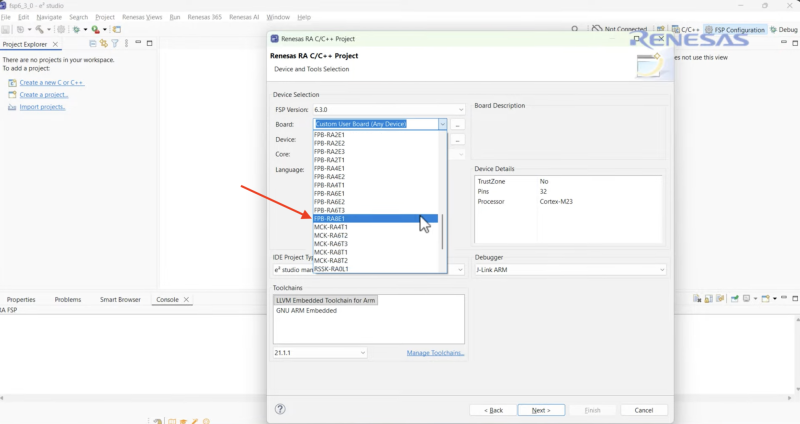
Figure 1. Selecting the FPB-RA8E1 board in the e² studio new project wizard. Image used courtesy of Renesas
Starting with a minimal template removes unnecessary driver overhead so you can focus on the external interrupt.
Step 2: Add the Stack and Verify the Pin
- Open the FSP configuration file, switch to the Stacks tab, click New Stack, choose Input, and select External IRQ.
- Refer to the user manual to confirm the user switch connects to P009. Open up the Pins tab, expand P009, and open its properties to see that this pin is already configured for external IRQ.
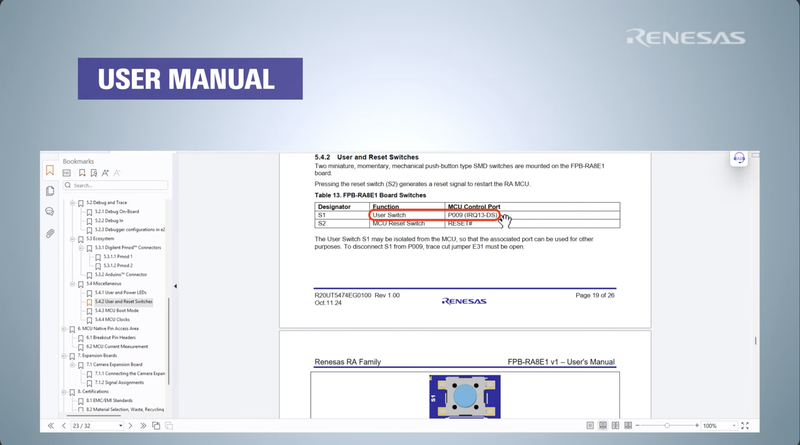
Figure 2. The FPB-RA8E1 user’s manual shows the user switch (S1) connected to P009, which maps to IRQ13. Image used courtesy of Renesas
Checking the physical schematic guarantees your software channel actively listens to the actual hardware switch rather than a disconnected port.
Step 3: Configure the Interrupt Properties
- Return to the external IRQ stack properties and set the channel to 13. After choosing channel 13, you’ll notice that the pin is automatically mapped to this stack. Select falling edge as the interrupt trigger source, define the callback function as External_IRQ_CB, assign an Interrupt Priority of 12, and click Generate Project Content.
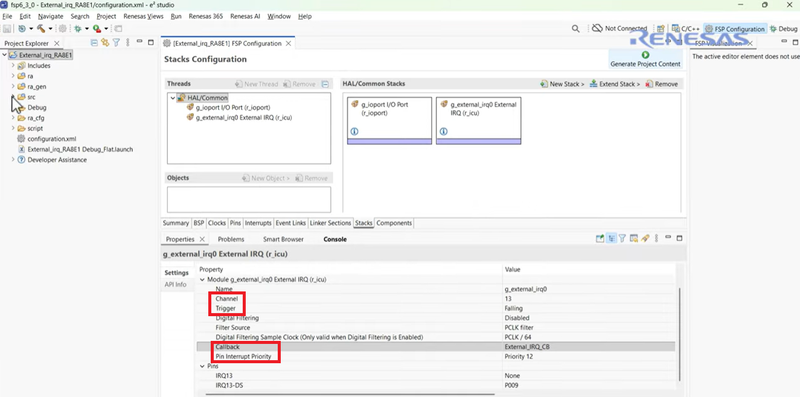
Figure 3. The external IRQ stack properties with channel 13, a falling-edge trigger, the callback name, and the interrupt priority set. Image used courtesy of Renesas
Setting the trigger to a falling edge guarantees the code will execute the moment the button is pressed down.
Step 4: Initialize the Interrupt in Code
- Expand the src folder, open the hal_entry.c file, and define an fsp_err_t error variable initialized to FSP_SUCCESS inside the hal_entry function.
- In the Project Explorer, expand Developer Assistance, expand the external IRQ stack, drag and drop the external IRQ open function call, and add an assert function to check the open call.
The peripheral must be explicitly opened in the software before the hardware will actively listen for the trigger.
Step 5: Enable the Interrupt and Loop
- From the Developer Assistance tab, drag and drop the external IRQ enable function call, add an assert function to confirm its success, and declare an empty while(1) loop.
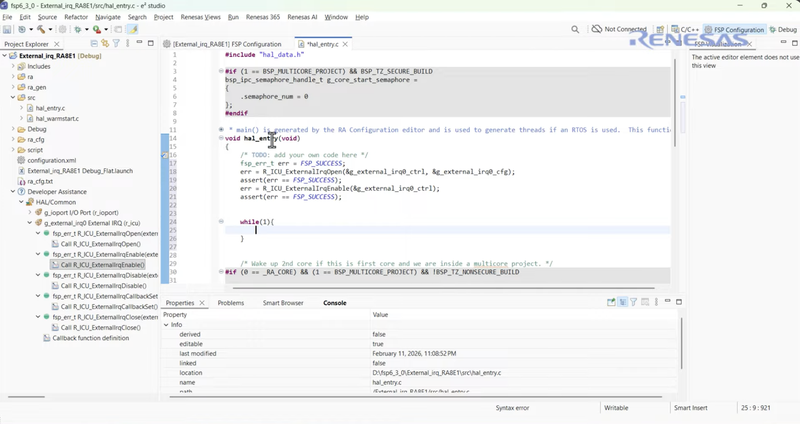
Figure 4. The external IRQ open and enable calls in hal_entry.c, followed by an empty while(1) loop. Image used courtesy of Renesas
This empty loop keeps the processor busy since all processing will be handled directly inside the interrupt callback.
Step 6: Construct the Callback Function
- From the Developer Assistance menu, drag and drop the callback function into the hal_entry.c file outside and above the hal_entry() function. At this stage, if you want to change the interrupt priority, return to the FSP configuration’s stack properties, select your desired priority (e.g., Priority 5), and click Generate Project Content again. Because this project uses only one interrupt, the exact priority value does not affect its behavior.
- Back inside the callback, first define an fsp_err_t error variable. Then, declare a static volatile bsp_io_level_t variable named led_state to hold the current pin state, setting it to BSP_IO_LEVEL_LOW, and use a ternary operator to toggle it.
Without this toggle, every button press would write the same value. The ternary operator flips the stored state, causing consecutive button presses to successfully alternate the LEDs between on and off.
Step 7: Implement the LED Toggle Logic
- From the Developer Assistance tab, expand the g_ioport I/O Port stack, and drag and drop the pin write function call into the callback. Select LED1 for the pin argument, and use the led_state variable for the second argument.
- Drag and drop the pin write function call from the Developer Assistance menu a second time for the second LED. After each pin write call, add an assert function to confirm that the operation completed successfully.
- Finally, use the FSP_PARAMETER_NOT_USED function call.
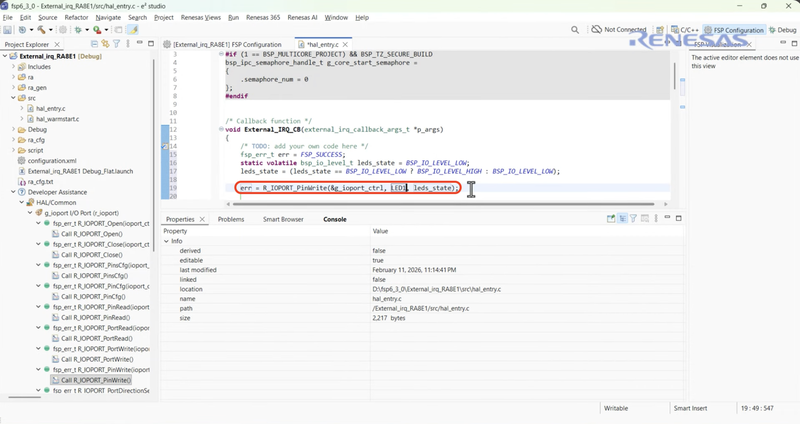
Figure 5. The R_IOPORT_PinWrite call for LED1 added inside the External_IRQ_CB callback. Image used courtesy of Renesas
The FSP_PARAMETER_NOT_USED macro tells the compiler to ignore the unused p_args parameter, suppressing any related warnings.
Step 8: Build the Code and Verify Output
- Click the project name and click the hammer icon to build. Right-click the project name, select Debug As, and select Renesas GDB Hardware Debugging.
- Click the switch button to open the debug perspective, and click the resume button, then click the resume button again. The debugger halts once at reset and again at the start of main, so two resumes are needed before the program runs freely.
Pressing the physical hardware switch validates that your software configuration perfectly matches the electrical signal path.
Code Snippet
/* Callback function generated by the Developer Assistance tool */
void External_IRQ_CB(external_irq_callback_args_t *p_args)
{
    fsp_err_t err = FSP_SUCCESS;

    // Store the LED state so it persists across button presses
    static volatile bsp_io_level_t led_state = BSP_IO_LEVEL_LOW;

    // Toggle the logic state
    led_state = (led_state == BSP_IO_LEVEL_LOW) ? BSP_IO_LEVEL_HIGH : BSP_IO_LEVEL_LOW;

    // Write the new state to both onboard LEDs
    err = R_IOPORT_PinWrite(&g_ioport_ctrl, LED1, led_state);
    assert(err == FSP_SUCCESS);

    err = R_IOPORT_PinWrite(&g_ioport_ctrl, LED2, led_state);
    assert(err == FSP_SUCCESS);

    // Suppress unused parameter warnings
    FSP_PARAMETER_NOT_USED(p_args);
}

void hal_entry(void)
{
   fsp_err_t err = FSP_SUCCESS;
   err = R_ICU_ExternalIrqOpen(&g_external_irq0_ctrl, &g_external_irq0_cfg);
   assert(err == FSP_SUCCESS);
   err = R_ICU_ExternalIrqEnable(&g_external_irq0_ctrl);
   assert(err == FSP_SUCCESS);
   while(1){
   }
}
What You Should See
After clicking resume twice in the debugger, the board will appear idle. Press the physical User Switch on the FPB-RA8E1 board. The moment you press the button, both onboard LEDs will turn on. Pressing the button a second time will instantly turn both LEDs off.
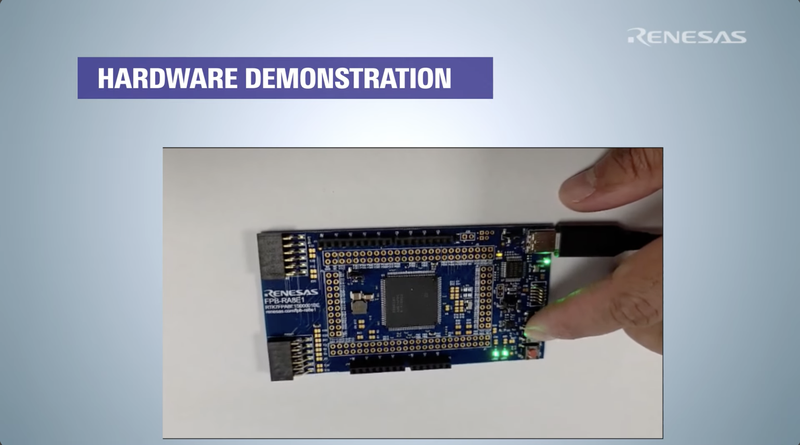
Figure 6. Pressing the user switch on the FPB-RA8E1 turns on both onboard LEDs. Image used courtesy of Renesas
Troubleshooting
The LEDs Never Turn On When the Button Is Pressed
Verify that you configured the correct IRQ Channel in the FSP. The User Switch on this specific board routes to P009, which maps to IRQ channel 13. If you leave the channel at its default setting, the processor will listen to the wrong pin.
The Code Builds but Immediately Crashes Into a Hard Fault
Double check that you dragged the Enable API call into hal_entry.c directly after the Open call. If you attempt to trigger an interrupt that has been opened but not enabled in the interrupt controller, the system may fault.
The Build Fails With an Undefined Callback Error
Ensure the callback name you typed into the FSP Properties window (External_IRQ_CB) exactly matches the name of the function you dragged from the Developer Assistance tool into your source code.
The Hardware Debugger Refuses to Launch
Check that you have clicked on the correct project name in the Project Explorer before clicking the hammer icon to build. If the active selection is on a random text file rather than the project root, e² studio may fail to compile the correct executable binary required for the GDB hardware debugging session.
Where to Take It Next
Now that you have a functioning hardware interrupt, you can explore the limitations of mechanical switches. Because physical metal contacts bounce when pressed, you might occasionally see the LEDs toggle twice on a single press. Try implementing a software debounce routine inside your callback using a hardware timer to filter out these erratic signals. Once you have a clean signal, you can connect an external sensor to a different GPIO pin, map it to a new IRQ channel, and use the trigger to wake the microcontroller from a deep sleep power state.
Frequently Asked Questions
What Does the FSP_PARAMETER_NOT_USED Macro Do?
When the interrupt controller triggers your callback function, it passes an argument pointer (p_args) containing specific event information. If you do not actively use this pointer in your logic, the compiler will generate a warning. This macro safely tells the compiler to ignore the unused parameter.
Why Use a Falling Edge Trigger Instead of a Rising Edge?
The User Switch is typically pulled high by default and shorts to ground when pressed. Therefore, pressing the button creates a transition from high voltage to low voltage (a falling edge). A rising edge would trigger the interrupt when you release the button.
Why Drag and Drop From the Developer Assistance Tool?
Dragging and dropping API calls from Developer Assistance ensures you insert the exact function signatures required by the Flexible Software Package. It prevents typos and automatically includes the correct instance pointers (like &g_external_irq0_ctrl).
Why Is the led_state Variable Declared as Static Volatile?
Declaring the variable as static ensures its value is preserved in memory between individual button presses, rather than resetting every time the callback function runs. Adding volatile tells the compiler that every read and write must actually go to memory instead of being cached in a register. That matters when a variable is shared between an interrupt callback and main code; in this project only the callback touches led_state, so volatile is harmless but not strictly required.